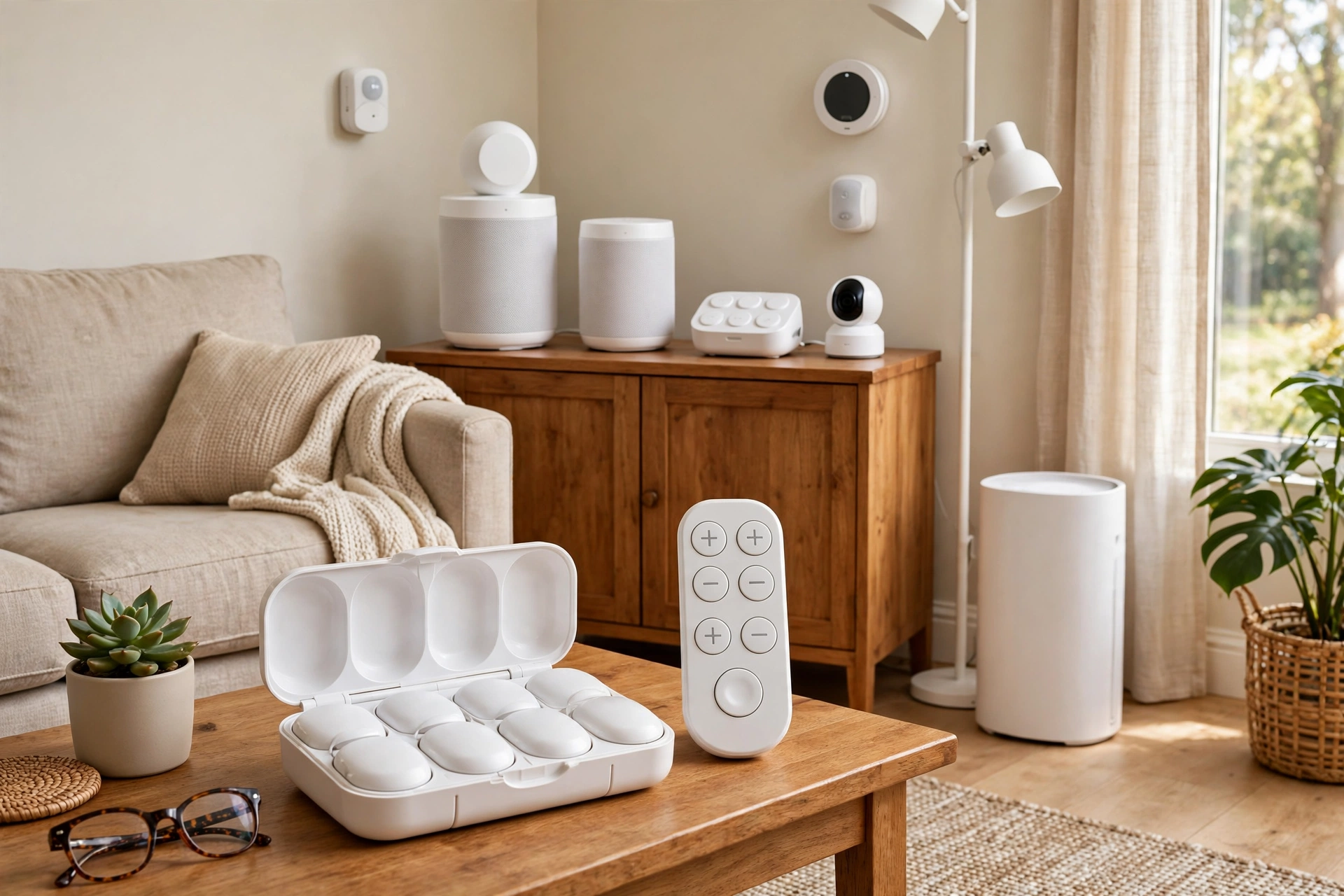
Smart Home Tech for Seniors: 2026 Guide
Key takeaways
- The smart home technology for seniors that actually gets used shares three traits: voice-first control, one visible interface, and a job your parent already wanted done.
- Start with voice control for lights and locks plus a single kitchen-counter display for video calls — that combination covers the highest-value daily tasks.
- Automated medication dispensers ($70–$300 plus possible monthly monitoring) work when they fit your parent's routine; alerting a family member on missed doses is the feature that matters.
- Avoid whole-house automation overhauls at the start: complex apps, tiny remotes, and subscription-heavy gadgets are the most commonly abandoned.
- Budget $300–$1,500 for professional setup help if you live far away; reliable Wi-Fi and one admin account you control matter more than any single device.
If you are setting up smart home technology for seniors — your parents, most likely — here is the honest truth before you buy anything: most of it will be abandoned within a month. Not because the technology is bad, but because it was bought for the tech, not for the person. The devices that survive share a pattern, and it has almost nothing to do with features. They are voice-first or single-button simple, they live in one visible place, and they do a job your parent already wanted done: turning on the lights without getting up, seeing a grandchild's face without dialing, taking the right pill at the right time.
This guide is written for adult children doing the setup, not the marketing brochure. It covers what actually gets used versus what gets unplugged, how to choose voice control and simplified interfaces, medication reminders that work in real life, video calling without the friction, and realistic 2026 costs — so you build a system your parent will still be using a year from now. Costs are 2026 US market ranges; get itemized local quotes.
Smart home technology for seniors: what actually gets used
Start with the abandonment problem, because it decides everything else. The typical failed setup looks like this: a well-meaning child installs five apps, two hubs, a smart thermostat, a robot vacuum, and a camera system over a holiday weekend, then flies home. Within weeks, the parent is using none of it. The Wi-Fi password changed. An app updated and asked for a login. A notification got scary. Each small friction compounds until the whole system feels like a test they are failing.
The systems that stick do the opposite. They reduce the number of things a parent must learn, remember, and maintain — ideally to zero. A smart speaker that responds to “turn on the kitchen light” asks nothing new of someone who already knows how to talk. A display on the kitchen counter that rings when family calls asks nothing more than answering a doorbell. Your design goal is not automation; it is fewer steps between your parent and the outcome they want.
There is also a dignity question worth naming. Nobody wants to feel surveilled by their own children. Frame every device around independence and convenience — “this means you don't have to get up when your knees hurt” — not monitoring. Devices that read as safety surveillance get resisted, muted, or quietly unplugged. The same sensor, framed as convenience, gets used.
Moen Home Care 24-Inch Stainless Steel Concealed Screw Grab Bar (8724)

Supports up to 500 lbs with SecureMount anchoring in showers and tubs
*Affiliate Disclosure: As an Amazon Associate, Elevate Home earns from qualifying purchases. Pricing and availability subject to change.
Voice control: the remote control for the whole house
Voice control is the single highest-leverage thing you can install, because it replaces remotes, switches, and apps with a skill your parent already has. A smart speaker or smart display in the living room and bedroom — roughly $50–$130 per device for a speaker, $90–$250 for a display with a screen — becomes the house's remote control: lights, thermostat, door lock status, timers, weather, music, and calling family, all by voice.
What to buy: pick one ecosystem and stay in it. Mixing voice assistants across rooms is the fastest way to create confusion (“which one do I talk to?”). For most households this means one brand's speakers throughout — consistency matters more than which brand wins a spec comparison. Put a display with a screen in the room where your parent spends the most daytime hours, and a cheaper speaker-only device in the bedroom.
The setup details decide whether it sticks. During your visit, program the exact phrases your parent will actually say — “good morning” to turn on the kitchen and living room lights and read the weather, “good night” to turn everything off and lock the doors. Write the phrases on a card and tape it where the device sits. Set the voice assistant's default responses to be brief, and turn off the shopping and suggested-content features that produce confusing interruptions. Then test it with your parent three times, with you out of the room — the test that matters is whether it works when nobody tech-savvy is standing there.
One caution: voice control needs reliable Wi-Fi, and many senior households have the router the internet company installed a decade ago in a closet. Budget for a modern mesh Wi-Fi system ($150–$350) before you buy a single smart device. A voice assistant that can't hear the internet is just a paperweight that talks.
Simplified interfaces: one screen, one purpose
Even with voice control, a visible interface helps — especially for video calls, photos, and anything visual. The mistake is handing a parent a general-purpose tablet loaded with apps. The winning pattern is a dedicated display with one job: the kitchen-counter screen that shows who's at the door, takes video calls, and displays family photos.
Smart displays with large screens ($150–$280) work well here because they sit in a fixed spot, stay plugged in, and can be configured to show a simple home screen with two or three large touch targets: call family, see the front door, play music. Remove everything else. Turn off the rotating ads, news briefings, and recipe suggestions that clutter the screen and invite accidental taps into confusing territory.
For parents with significant vision or dexterity limitations, consider a senior-specific tablet service — simplified tablets with large text, big buttons, and remote administration so you can manage settings from your own home. These typically run $200–$400 for the device plus a monthly service plan in the $50–$80 range. The premium is real, but for a parent who cannot manage a standard tablet, the alternative is usually no video contact at all, which makes the math straightforward.
Whatever screen you choose, you — the adult child — should be the administrator. Set up the accounts, the contacts, the Wi-Fi, and the automatic updates. Your parent should never need a password. Write down nothing except the Wi-Fi network name on that same taped-up card, and keep the admin credentials yourself.
Medication reminders that actually work
Medication management is where smart home tech earns its keep most concretely — and where the wrong product creates a false sense of security. The product landscape runs from simple to serious: basic weekly pill organizers ($10–$30, not smart at all, and honestly sufficient for many people), automated dispensers that release the right compartment at the right time with an audible alert ($70–$300), and connected dispensers that notify a family member or caregiver by text or app when a dose is missed ($150–$400 plus a monitoring subscription, often $30–$70 per month).
The feature that separates useful from decorative is the missed-dose alert to someone else. A dispenser that beeps in an empty kitchen helps nobody; one that texts you when Mom's morning dose sits untaken for an hour is genuinely protective. If your parent takes five or more daily medications, has any cognitive decline, or lives alone, the connected tier is worth the subscription. If the routine is simple and your parent is sharp, a well-organized pill box plus a voice-assistant reminder (“remind me to take my pills at 8am every day” — free) is the better buy.
Fit the device to the routine, not the other way around. A dispenser that holds a week's medications fails a parent who refills monthly; one with tiny compartments fails arthritic hands. Watch your parent load it once before you leave — the refill process is where these systems actually break down, and if it takes twenty frustrating minutes, it will not happen.
Video calling without the friction
Video calling is the highest-emotional-value feature in the senior smart home, and the setup has exactly one rule: your parent should never dial, answer through menus, or troubleshoot. The call comes to them, on the fixed display, as a full-screen incoming call they accept with one large button — or better, with auto-answer from approved contacts after a short ring.
Smart displays handle this natively within their ecosystems: family members call from their phones, the kitchen display rings, one tap connects. Set every family member up as a contact before you leave, test a call from each person's phone, and enable any “drop in” or auto-answer feature only for the two or three closest contacts — with your parent's clear consent. Auto-answer from everyone is a privacy problem; from a spouse and one child, it is a lifeline.
Schedule the habit, not just the hardware. A standing Sunday video call does more for consistent use than any feature. And keep a simple backup: a large-button phone or a one-touch dialer for the times the internet is down. Technology fails; the Sunday call should not depend on a single device.
What to skip — or buy with open eyes
Some popular smart home gear is a poor fit for senior households, at least as a starting point. Indoor cameras marketed for “checking in” read as surveillance and get covered with tape; if fall or inactivity monitoring matters, dedicated fall detection systems are designed for the job with consent built in. Complex app-controlled lighting scenes, color-changing bulbs, and anything requiring a phone app for basic function will be abandoned the first time the app logs out. Robot vacuums are genuinely useful for some, but they need regular bin-emptying and get stuck — budget your parent's tolerance for rescuing a stuck robot before buying.
Smart thermostats deserve a nuanced call. They save energy and can be managed remotely by you — real value. But the physical interface confuses many seniors, and a parent who cannot work the thermostat in winter is a safety issue, not an inconvenience. If you install one, keep the old thermostat's simplicity in mind: choose a model with a clear physical dial or large display, set generous schedules, and show your parent exactly one way to make it warmer and one way to make it cooler. Then check in during the first cold snap.
What it costs in 2026
A sensible starter setup — two smart speakers or one display plus one speaker, a handful of smart plugs or bulbs, and a mesh Wi-Fi upgrade — typically runs $400–$900 in equipment. Add a connected medication dispenser with a year of monitoring ($300–$700 all-in for the first year), and a senior-specific tablet with service plan if needed ($500–$1,200 for the first year). Professional setup services aimed at seniors — a technician who comes to the house, configures everything, and teaches your parent — run $300–$1,500 depending on scope and market.
Costs are 2026 US market ranges; get itemized local quotes.
Spend in this order: reliable Wi-Fi first, voice control second, one good display third, medication support fourth. Everything else is optional. And resist subscription creep — audit the monthly charges yearly, because $15-a-month services accumulate quietly into real money.
“The best senior smart home is the one your parent can use when you're not there to explain it. If it needs you in the room, it isn't finished.”
Next steps: setting it up without the holiday-weekend disaster
Do the infrastructure before the visit: upgrade the Wi-Fi, choose one ecosystem, and create all accounts yourself. During the visit, install no more than three new capabilities — voice control, the video-call display, and one more (medication reminders or smart lighting). Program the exact voice phrases, write the card, test everything with you out of the room, and leave a single page of instructions with pictures, not paragraphs.
After you leave, schedule two check-in calls in the first fortnight specifically about the tech — not “how are you” calls where tech comes up awkwardly, but calls where the agenda is the devices. Most abandonment happens in the first two weeks and is fixable in ten minutes if you catch it. Get an itemized quote from a local senior-tech setup service if you live far away; a professional afternoon visit beats three frustrating phone troubleshooting sessions. Costs are 2026 US market ranges; get itemized local quotes.
Frequently asked questions
What smart home device should I buy first for an elderly parent?
A voice-controlled smart speaker or display in the room they use most. It replaces remotes, switches, and apps with spoken commands for lights, thermostat, timers, and calling family — the highest-leverage single purchase. Fix the Wi-Fi first if it's unreliable, since every smart device depends on it.
How do I keep my parent from getting confused by too many apps?
Don't give them apps at all. You should be the administrator of every account, and your parent's interface should be voice commands plus at most one fixed display with two or three large touch targets. Write the exact voice phrases on a card taped near the device, and remove every feature they don't need.
Are smart medication dispensers worth the monthly subscription?
The subscription is worth it when it includes missed-dose alerts to a family member or caregiver — that's the feature that makes the device protective rather than decorative. For simple routines with a sharp, independent parent, a weekly pill organizer plus a free voice-assistant reminder is usually the better buy.
How can my parent video-call us without learning a new app?
Use a fixed smart display where family calls arrive as a full-screen incoming call answered with one large button. Set up all contacts yourself, test from each family member's phone, and enable auto-answer only for the two or three closest contacts with your parent's consent.
My parent is worried the devices are spying on them. How do I handle that?
Take the concern seriously — frame every device around independence and convenience, never monitoring. Turn off shopping, suggested content, and ad features that cause confusing interruptions, limit auto-answer to approved contacts, and skip indoor cameras in favor of purpose-built safety devices. If a device reads as surveillance, it will get unplugged.
Should I hire someone to set this up if I live far away?
Often yes. Senior-focused tech setup services ($300–$1,500 depending on scope) configure everything in person and teach your parent directly, which beats remote phone troubleshooting. At minimum, do all account setup yourself remotely, ship pre-configured devices, and schedule two tech-specific check-in calls in the first fortnight.
Keep reading

Senior Tech
Fall Detection Systems for Seniors: Guide
Fall detection systems for seniors compared: wearables vs home sensors vs monitored pendants — accuracy, false…
Senior Tech
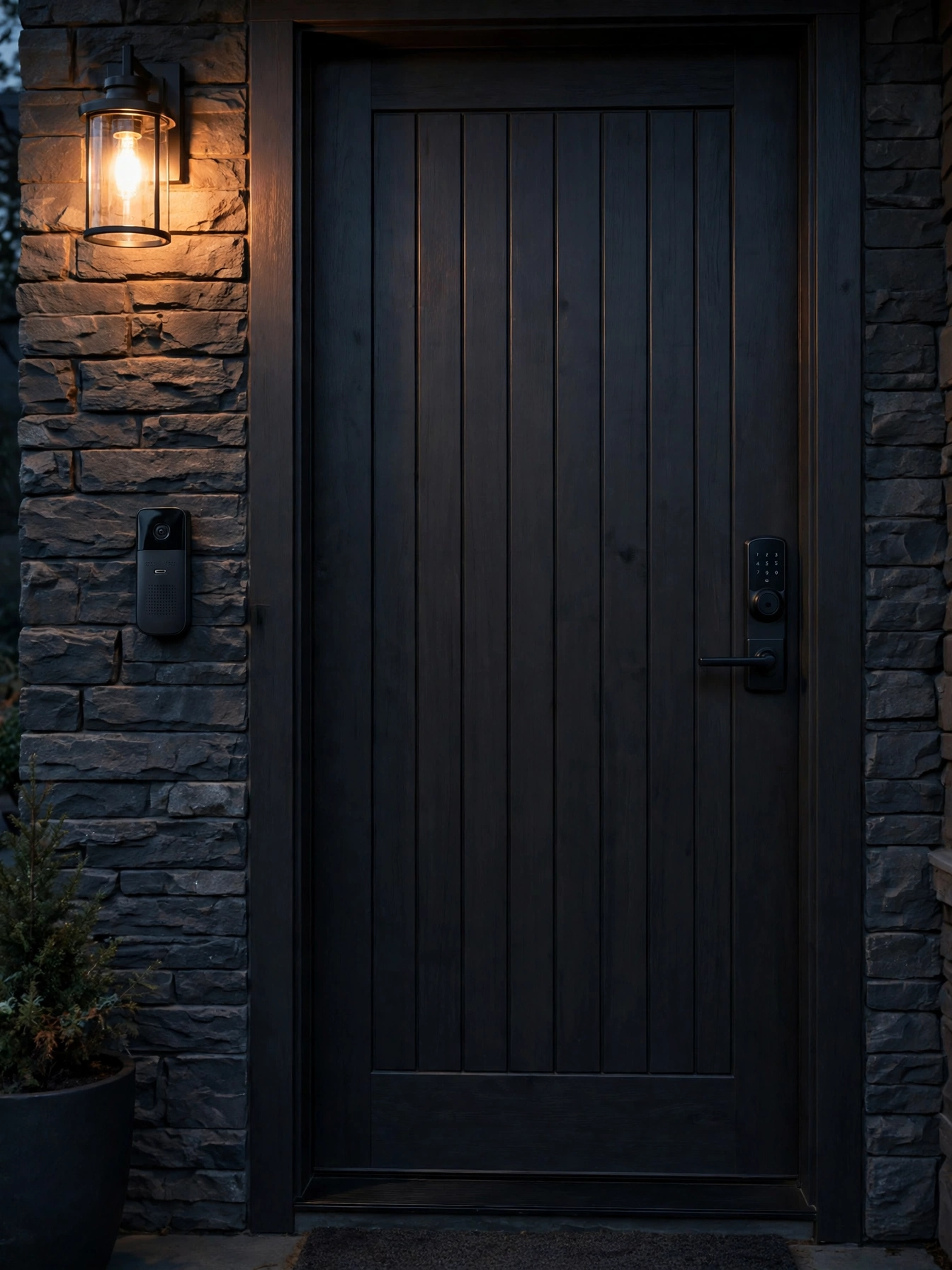
Smart Locks & Doorbells for Seniors: Guide
Smart locks for seniors compared: keypad vs fingerprint vs voice, video doorbells with large displays, package…
2026 Tech
New Aging-in-Place Tech: 2026 Guide
Aging-in-place technology for 2026: radar fall detection, AI companions, hearing-loop streaming, smart-home sa…
Condition Guides
Dementia Home Safety Guide: 2026
Dementia home safety modifications: wandering prevention, stove safety, contrast and wayfinding, secure outdoo…
Interactive Tool
Aging in Place Renovation Cost Estimator 2026 Guide
Budget your aging-in-place renovation with our interactive estimator. Price accessible bathrooms, kitchens, el…
Transfer Equipment
100A vs 200A Automatic Transfer Switch
100 amp vs 200 amp transfer switch: service-entrance vs subpanel topology, when each is required, costs, and l…