Voice Assistants for Seniors: Setup & Safety Guide
Key takeaways
- A smart display in the main living area plus a speaker in the bedroom covers most senior households for $120–$530 in hardware.
- Setup is the whole project: place the device near the favorite chair, raise volume past defaults, slow the speech rate, and teach commands with real tasks.
- Enable voice confirmation of smart-home actions and large-text, high-contrast display modes so low-vision and limited-dexterity users can trust what they hear.
- Hands-free calling, sound detection for alarms, and daily check-in routines add real safety layers — but a voice assistant is not a substitute for a monitored medical alert device.
- Set privacy boundaries on day one: review voice history, require a PIN for purchases, enable spam-call screening, and skip the camera model if video calls are not needed.
A voice assistant is the only smart-home device you never have to touch, squint at, or chase around a tiny screen. For someone living with low vision, arthritis, or stiff hands, that single fact changes the math of daily life: the lamp, the lock, the thermostat, and the phone all answer to a spoken word. But the default, out-of-the-box setup is designed for a tech-comfortable thirty-year-old, not for someone whose hands shake and whose hearing aids complicate every conversation. Done thoughtfully, though, a $50 to $350 speaker or display can become the most independence-preserving upgrade in the house — cheaper than one month of in-home care, and working around the clock.
Why Voice Control Matters More After 65
Most technology asks the user to adapt to it: smaller buttons, more menus, brighter screens. Voice assistants work the other way around. They adapt to the speaker. Say "turn on the hallway light" and the hallway light turns on — no app to open, no remote to find, no tiny icon to tap. For an older adult who is gradually losing fine motor control or whose vision makes touchscreens frustrating, that removes whole categories of daily friction.
The research conversation around aging in place keeps circling the same finding: independence is mostly made of small tasks. Getting the lights on at night without walking across a dark room. Answering the door without rushing to the peephole. Calling a family member without finding reading glasses to dial. Each of these is a moment where a stumble or a fall becomes possible. Voice control does not just add convenience here; it removes trips across the room, reaching into high cabinets, and fumbling with devices in the dark.
There is a social dimension too. Many older adults resist "medical" devices — emergency pendants, institutional-looking aids — because they feel like concessions. A smart speaker or smart display reads as ordinary technology, the same kind their grandchildren use. That matters. An independence tool only helps if the person is willing to keep it in the room and actually use it, and nothing about a voice assistant announces frailty. Families planning a parent's home should treat the assistant as infrastructure, like good lighting or a comfortable chair, rather than as a gadget.
Moen Home Care 24-Inch Stainless Steel Concealed Screw Grab Bar (8724)

Supports up to 500 lbs with SecureMount anchoring in showers and tubs
*Affiliate Disclosure: As an Amazon Associate, Elevate Home earns from qualifying purchases. Pricing and availability subject to change.
Picking the Right Assistant for a Senior Household
Three major voice platforms dominate the market, and for a senior household the differences that matter are not the ones tech reviewers argue about. What matters is hearing accuracy with soft or slow speech, a screen option for visual confirmation, hearing-aid friendliness, and how gracefully the device handles a misunderstood command.
- Amazon Alexa: The widest accessory ecosystem and the most forgiving routine builder. The Echo Show displays (8-inch and 10-inch) add a screen that shows the time, weather, and captions for what the assistant heard — genuinely useful for low vision, because the spoken answer is reinforced visually in large type.
- Google Assistant: Typically the strongest at understanding natural, imprecise phrasing, which helps when speech is slow, quiet, or slurred. Nest Hub displays show answers and support large-text modes. A good pick when the user phrases things their own way rather than learning commands.
- Apple Siri (HomePod): The tightest privacy story and the simplest experience for a household already using iPhones and iPads. The lineup is smaller and pricier, and whole-home device support is narrower than the other two.
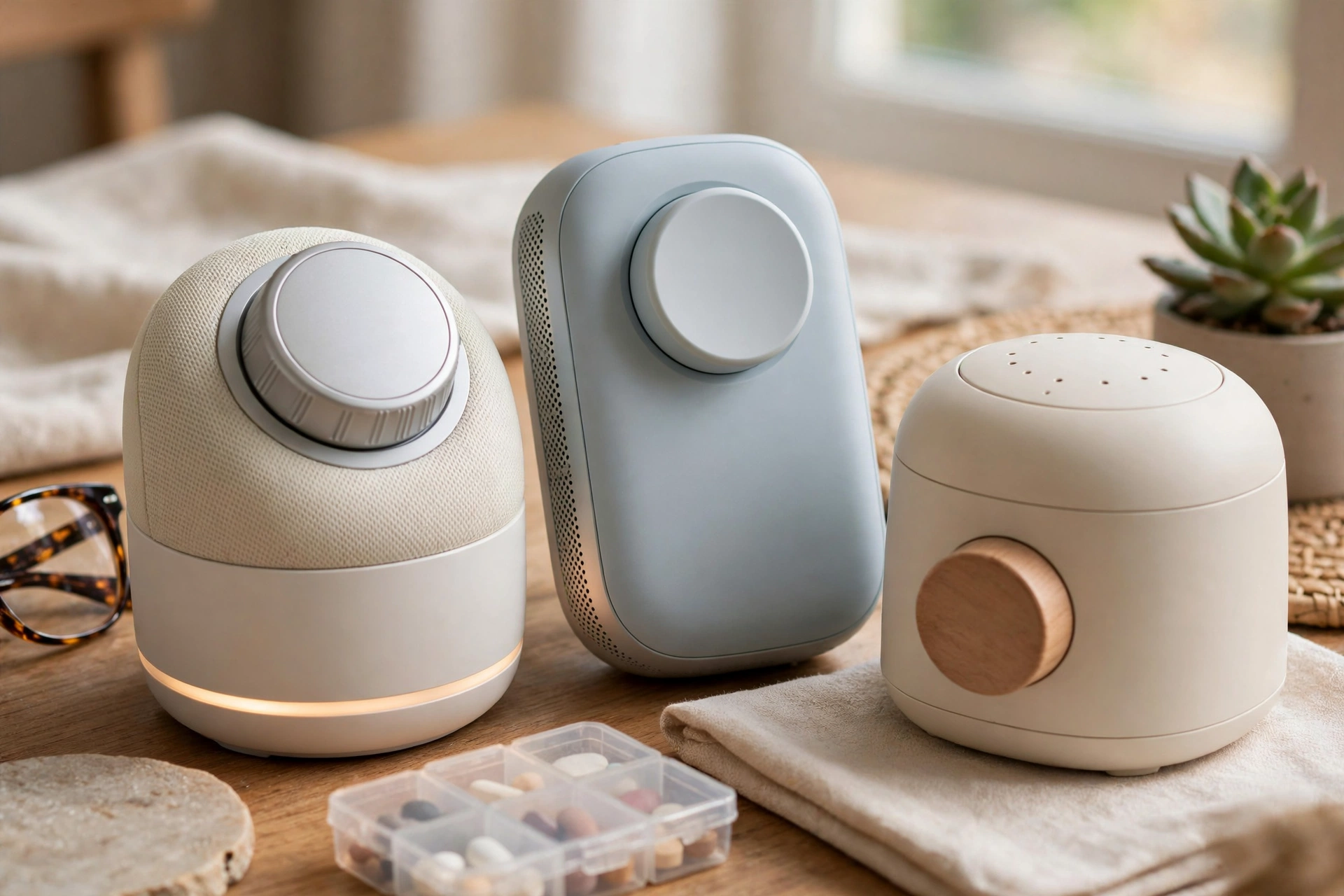
For most aging-in-place setups, the sweet spot is a smart display in the room where the person spends the most time — kitchen or living room — plus a smaller speaker-only device in the bedroom for nighttime requests. In 2026, expect $30–$80 for a basic speaker, $90–$180 for a mid-size display, and $200–$350 for a large display with better audio and a camera for video calls. Costs are 2026 US market ranges; get itemized local quotes if you hire installation help. Buy the display with the camera only if video calling matters; otherwise a camera-free model removes one privacy worry entirely.
The First-Hour Setup That Makes Everything Else Easy
The single biggest reason voice assistants gather dust in seniors' homes is a rushed setup. The device gets plugged in, linked to a Wi-Fi network, and abandoned at factory defaults. Instead, treat the first hour as the whole project, and do it with the person — or better, let them do it while you narrate. Ownership starts with the first successful command being theirs.
- Place it within six feet of the favorite chair, slightly above seated ear level, away from the TV speaker. Microphones work dramatically better when the device is not fighting background noise from across the room.
- Turn the volume up past the default. Out-of-the-box volume is tuned for a quiet studio apartment. Raise it until answers are clearly audible from the usual sitting spot, and enable any "adaptive volume" setting so the assistant speaks louder when the room is noisy.
- Slow the speech rate. Every major assistant offers a slower voice. A calm, unhurried response voice is far easier to follow for someone with hearing aids or auditory processing changes.
- Set the correct address and time zone so weather, local news, pharmacy hours, and emergency information are all local and correct.
- Connect one high-value smart device — a lamp, a plug, the thermostat — and teach the command for it before connecting anything else. One working automation beats five half-configured ones.
- Write a one-page cheat sheet in large print with the five most useful commands, and tape it next to the device. Nobody memorizes commands from a single demo.
If the household is not comfortable doing this alone, many local handymen and home-tech services will do a senior-focused smart-home visit for $150–$500, including Wi-Fi checks and device placement. That is money well spent when the alternative is a drawer full of unused gadgets.
Tuning for Low Vision and Limited Dexterity
Low vision and limited dexterity are the two conditions voice assistants serve best — but only if the device is tuned for them. Start with the display: enable the largest text size, high-contrast mode, and the clock face that is readable from across the room. On a smart display, the idle screen should show time and date in type big enough to read without glasses from the chair. That alone replaces a wall clock and a calendar for many users.
For dexterity limitations, the goal is to eliminate every interaction that requires a precise finger. Disable touch-only features the person will never use, and lean on voice for everything else: timers, reminders, phone calls, music, and smart-home control. Enable voice confirmation of smart-home actions — "Okay, the living room lamp is on" — so the person never has to get up to check whether the command worked. That single setting converts voice control from a guessing game into something trustworthy.
Hearing aids complicate voice assistants in one specific way: the assistant's speaker and the hearing aid can create feedback or echo. Fixes that usually work: move the device a few feet farther from where the person sits, lower the bass if the app allows it, and switch the assistant's voice to a lower pitch if one is offered, since many hearing-aid users hear lower frequencies more clearly. If the assistant keeps mishearing, retrain its voice recognition in the actual room, at the actual volume the person speaks, with the hearing aids in — training done in a quiet bedroom never matches a lived-in living room.
For tremor or arthritis, also consider a simple smart button (around $15–$40) stuck to the nightstand or bathroom wall. One press can trigger a routine: lights on, hallway lit, assistant announces the time. It is the tactile backup for the 2 a.m. moment when speaking clearly feels like too much work.
The Daily Commands Worth Teaching
Do not hand someone a list of two hundred commands. Teach eight, practiced until they are muscle memory, and add more only when asked. The highest-value commands in a senior household are remarkably consistent:
- "Call [name]" — hands-free calling to family, with the display showing who is calling. This is the feature most older adults end up loving first.
- "Set a timer for 10 minutes" and "Remind me to take my pills at 8" — medication and cooking timers are the two most repeated uses in real homes.
- "Turn on/off the [room] light" — only after you have connected at least one lamp or switch.
- "What time is it" and "What's the weather" — orientation questions that reduce anxiety about the day, especially for anyone with early memory changes.
- "Play the news" or "Play [radio station]" — replaces a fiddly radio with something that never needs tuning.
- "Find my phone" — the lost-phone command saves a weekly household crisis.
Teach these in context, not in a lecture. Stand in the kitchen and set a real timer. Sit in the living room and call a grandchild. People learn the assistant the way they learned the microwave: by using it for one real task at a time. And set routines for the multi-step moments of the day: a "good night" routine that locks the doors, turns off the lights, and sets the alarm; a "good morning" routine that reads the weather and the day's reminders. Routines are where the device stops being a novelty and starts being infrastructure.
Safety Features That Earn Their Place
Voice assistants are not medical alert systems — be blunt about that with the family. A purpose-built personal emergency response device with fall detection and a monitored call center remains the gold standard for someone at real risk of falls, typically $25–$50 per month. But voice assistants add several genuine safety layers that complement it, and for a largely independent senior they can be enough on their own.
The most valuable is hands-free calling. A fall in the kitchen with a phone in the bedroom is the classic scenario, and a voice command that reaches a family member — or, on some platforms, an emergency contact service — closes that gap. Set up emergency contacts in the assistant's app and test the command with the actual person, in the actual rooms, before you need it. A feature nobody has practiced is not a safety feature.
Next is sound detection: modern assistants can listen for smoke alarms, CO alarms, glass breaking, or unusual sounds and send an alert to a family member's phone. It is not a substitute for working detectors — keep those tested and current — but it extends their reach to adult children across town. Pair it with smart locks and doorbells so the person can see and speak to visitors without approaching the door, and check that doors locked, from the chair. Finally, consider drop-in or check-in routines: a morning routine that requires a spoken response, with a missed check-in alerting a family member, gives everyone quiet reassurance without a single wearable device.
Privacy, Scam Calls, and Setting Boundaries
The honest privacy conversation has three parts. First, these devices do listen for a wake word locally, and they do send recordings to the cloud when activated — that is how the service works, and there is no version without that trade-off. What you can control is meaningful: review and delete voice history regularly, turn off human review of recordings where offered, use the physical microphone mute button at night or during sensitive conversations, and skip the camera model if video calling is not needed.
Second, scam protection deserves a frank family discussion. Voice assistants do not make a senior more vulnerable to phone scams by themselves, but a household that is newly comfortable talking to technology should hear the rules once, clearly: the assistant will never ask for a Social Security number, bank details, or passwords; anyone who calls claiming to be "tech support" for the device is lying; and no legitimate caller asks for gift cards. Enable the platform's spam-call screening and unknown-number blocking, and put the most important contacts in a favorites list so their calls always come through.
Third, set purchase and access boundaries in the app: require a voice PIN for purchases, disable voice purchasing entirely if it is not needed, and decide who in the family has access to the device's activity history and drop-in privileges. These settings take ten minutes and prevent nearly every "how did that happen" story. Revisit them once a year, because software updates quietly add new defaults. A voice assistant that is set up, tuned, and bounded this way is not a surveillance device in the home — it is a respectful one, there when spoken to and silent otherwise.
Frequently asked questions
Which voice assistant is best for seniors?
For most older adults, the choice comes down to Alexa or Google Assistant paired with a smart display. Alexa offers the widest accessory ecosystem and easy routines; Google tends to understand natural, imprecise phrasing better, which helps with slow or quiet speech. Pick the one whose phone app the family helper already knows — familiar support matters more than spec differences.
Can a voice assistant call 911 in an emergency?
It depends on the platform and your setup, and you should never assume it works until tested. Some services can contact emergency services or designated emergency contacts by voice, while others only call personal contacts. Set up emergency contacts in the app, test the exact command from the rooms where falls are likely, and keep a purpose-built medical alert device if fall risk is significant.
What if the assistant keeps misunderstanding my parent?
Three fixes solve most cases: retrain voice recognition in the actual room with hearing aids in, move the device within six feet of the usual sitting spot and away from the TV, and simplify the phrasing on the cheat sheet. Slow, quiet speech and strong accents all improve markedly with in-room retraining and closer placement.
Is it safe to have an always-listening device in the home?
The device listens locally for its wake word and only sends audio to the cloud after activation — that trade-off is inherent to the service. You can meaningfully reduce exposure by deleting voice history regularly, disabling human review of recordings, using the physical mute button at night, and choosing a camera-free model. Treat it like a helpful houseguest: present when spoken to, dismissible when not.
My mother has speech difficulties after a stroke. Will voice control still work?
Often yes, with adjustments. Google's assistant generally handles imprecise speech best, and retraining voice profiles with the person's actual speech patterns helps considerably. Keep commands short, consider a smart button as a tactile backup for key routines, and be realistic: if speech is severely affected, prioritize large-button remotes and simplified touch controls alongside — not instead of — voice.
Do we need fast internet for a voice assistant to work well?
You need reliable internet more than fast internet. A stable 25 Mbps connection handles several voice devices easily; the real killer is a weak Wi-Fi signal in the room where the device sits. If commands lag or fail, a mesh Wi-Fi node or extender near the device usually fixes it for $80–$200 — have the installer check signal strength during setup.
Keep reading
Senior Tech
Smart Home Tech for Seniors: 2026 Guide
Smart home technology for seniors, honestly assessed: what aging parents actually use, what gets abandoned, 20…
2026 Tech
New Aging-in-Place Tech: 2026 Guide
Aging-in-place technology for 2026: radar fall detection, AI companions, hearing-loop streaming, smart-home sa…
Sensory Design
Low-Vision Home Design: Lighting & Contrast Guide
Low vision home design guide: high-contrast edges, glare-free layered lighting, tactile markers, color strateg…
Senior Tech
Smart Locks & Doorbells for Seniors: Guide
Smart locks for seniors compared: keypad vs fingerprint vs voice, video doorbells with large displays, package…
Interactive Tool
Aging in Place Renovation Cost Estimator 2026 Guide
Budget your aging-in-place renovation with our interactive estimator. Price accessible bathrooms, kitchens, el…
Transfer Equipment
100A vs 200A Automatic Transfer Switch
100 amp vs 200 amp transfer switch: service-entrance vs subpanel topology, when each is required, costs, and l…